Atšķirības starp "E-mail password/en" versijām
No ''Hostnet Wiki''
(Updating to match new version of source page) |
|||
| (4 starpversijas, ko saglabājuši 2 lietotāji, nav parādītas) | |||
| 2. rindiņa: | 2. rindiņa: | ||
| − | == | + | == How can administrator change e-mail password?== |
#Log in to cPanel using the link '''http://domain.com:2083''' (where '''domain.com''' is your domain name). | #Log in to cPanel using the link '''http://domain.com:2083''' (where '''domain.com''' is your domain name). | ||
#After logging in, find the section '''Email''' and click the '''Accounts'''. | #After logging in, find the section '''Email''' and click the '''Accounts'''. | ||
| − | #Next to the e-mail address, click ''' | + | #Next to the e-mail address, click '''Manage'''. |
| − | #Type the desired password. For your and other customers'safety, we recommend you to include in the pasword capital letters, lower case letters, symbols and numbers. With the proposed tool you can generate the password which is harder to guess. | + | #In ''' New Password ''' Type the desired password. For your and other customers'safety, we recommend you to include in the pasword capital letters, lower case letters, symbols and numbers. With the proposed tool you can generate the password which is harder to guess. |
| − | #Confirm the change of the password by clicking ''' | + | #Confirm the change of the password by clicking '''Update email settings'''. |
[[Attēls:Region capture 6.png]] | [[Attēls:Region capture 6.png]] | ||
| − | == ''' | + | [[Attēls:pass.manage2.png]] |
| + | == '''How can e-mail user change e-mail password?''' == | ||
| − | # | + | #Go to Your webmail account: '''mail.domain.com''' or '''webmail.domain.com'''. |
| − | # | + | #Log in to your email account. |
# | # | ||
| − | #:1) | + | #:1) Click on your email to open menu. |
| − | #:2) | + | #:2) Choose '''"Password & Security"''' |
#:[[Attēls:pass1.png]] | #:[[Attēls:pass1.png]] | ||
# | # | ||
| − | #:1) | + | #:1) In area: '''New password''' type new password. |
| − | #:2) | + | #:2) In next arrea: '''Confirm New Password''' type new password once again. |
| − | #:3) | + | #:3) Click on '''Save''', to save new password. |
#:[[Attēls:pass2.png]] | #:[[Attēls:pass2.png]] | ||
[[Category:CloudHosting]] | [[Category:CloudHosting]] | ||
Pašreizējā versija, 2019. gada 13. marts, plkst. 12.50
How can administrator change e-mail password?
- Log in to cPanel using the link http://domain.com:2083 (where domain.com is your domain name).
- After logging in, find the section Email and click the Accounts.
- Next to the e-mail address, click Manage.
- In New Password Type the desired password. For your and other customers'safety, we recommend you to include in the pasword capital letters, lower case letters, symbols and numbers. With the proposed tool you can generate the password which is harder to guess.
- Confirm the change of the password by clicking Update email settings.


How can e-mail user change e-mail password?
- Go to Your webmail account: mail.domain.com or webmail.domain.com.
- Log in to your email account.
-
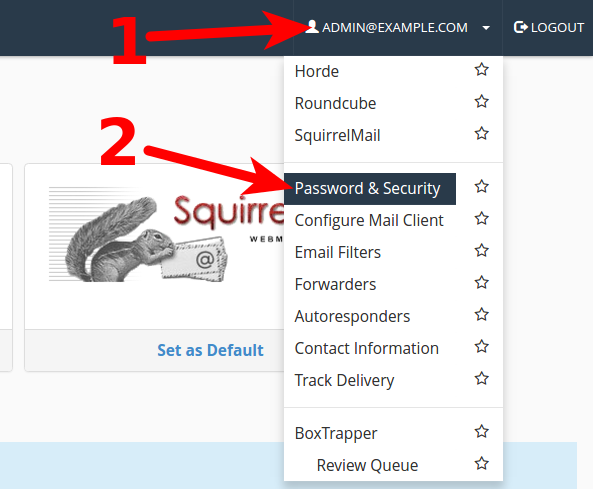
- 1) Click on your email to open menu.
- 2) Choose "Password & Security"
-
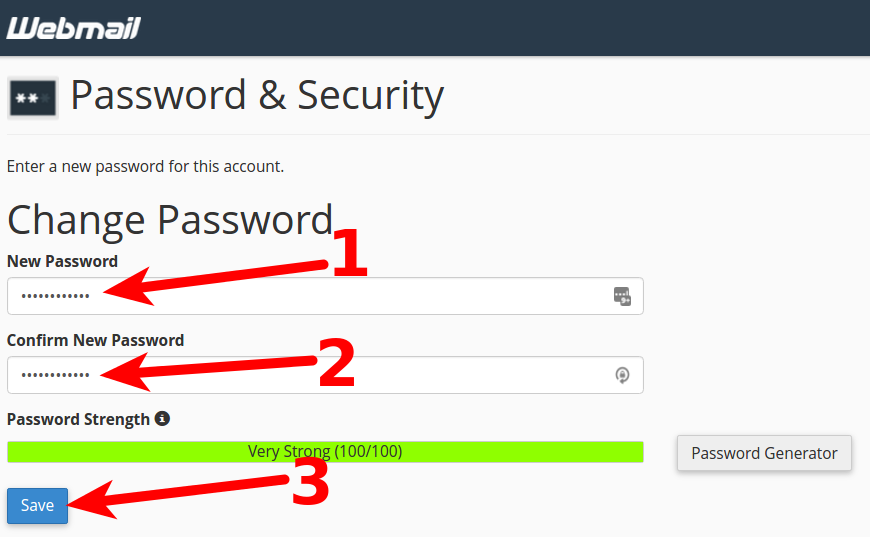
- 1) In area: New password type new password.
- 2) In next arrea: Confirm New Password type new password once again.
- 3) Click on Save, to save new password.