Atšķirības starp "E-mail password/en" versijām
No ''Hostnet Wiki''
(Updating to match new version of source page) |
|||
| 4. rindiņa: | 4. rindiņa: | ||
== How can administrator change e-mail password?== | == How can administrator change e-mail password?== | ||
| − | # | + | #Pieslēdzieties cPanel, izmantojot saiti '''http://domens.lv:2083''' (kur '''domens.lv''' ir Jūsu domēna vārds). |
| − | # | + | #Pēc pieslēgšanās atrodiet sadaļu '''Email''' un noklikšķiniet uz '''Accounts'''. |
| − | # | + | #Pie e-pasta adreses noklikšķiniet uz '''Manage'''. |
| − | # | + | #Sadaļā '''New Password''' ierakstiet vēlamo paroli. Jūsu un citu klientu drošībai mēs iesakām parolē iekļaut lielos burtus, mazos burtus, simbolus un ciparus. Varat ģenerēt grūtāk atminamu paroli ar piedāvāto rīku. |
| − | # | + | #Apstipriniet paroles maiņu, noklikšķinot uz '''Update email settings'''. |
[[Attēls:Region capture 6.png]] | [[Attēls:Region capture 6.png]] | ||
| + | [[Attēls:pass.manage2.png]] | ||
== '''How can e-mail user change e-mail password?''' == | == '''How can e-mail user change e-mail password?''' == | ||
Versija, kas saglabāta 2019. gada 13. marts, plkst. 12.49
How can administrator change e-mail password?
- Pieslēdzieties cPanel, izmantojot saiti http://domens.lv:2083 (kur domens.lv ir Jūsu domēna vārds).
- Pēc pieslēgšanās atrodiet sadaļu Email un noklikšķiniet uz Accounts.
- Pie e-pasta adreses noklikšķiniet uz Manage.
- Sadaļā New Password ierakstiet vēlamo paroli. Jūsu un citu klientu drošībai mēs iesakām parolē iekļaut lielos burtus, mazos burtus, simbolus un ciparus. Varat ģenerēt grūtāk atminamu paroli ar piedāvāto rīku.
- Apstipriniet paroles maiņu, noklikšķinot uz Update email settings.


How can e-mail user change e-mail password?
- Go to Your webmail account: mail.domain.com or webmail.domain.com.
- Log in to your email account.
-
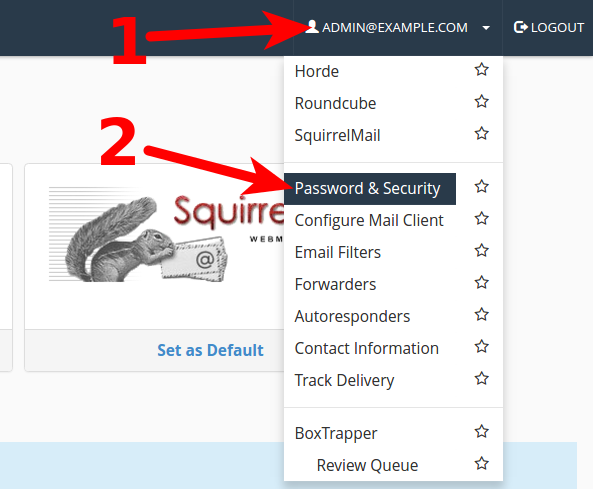
- 1) Click on your email to open menu.
- 2) Choose "Password & Security"
-
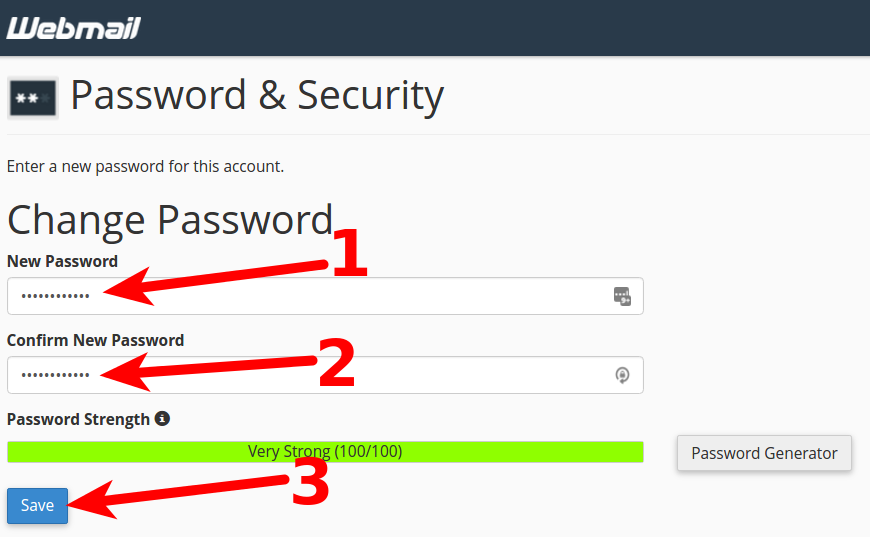
- 1) In area: New password type new password.
- 2) In next arrea: Confirm New Password type new password once again.
- 3) Click on Save, to save new password.